• Home page
  • Articles
  • adservio.ro
  • RO
  • Home page
  • Articles
  • adservio.ro
  • RO

Configs

Homepage/Articole/Interactive lesson/Zoom configurations for videoconferencing on Adservio
Popular searches:How do I create an Adservio account?, How do I create a strong password?, How do I recover my password?

Zoom configurations for videoconferencing on Adservio

90 views 0

In order to stream a Zoom videoconference on Adservio, you need to perform the following configurations:

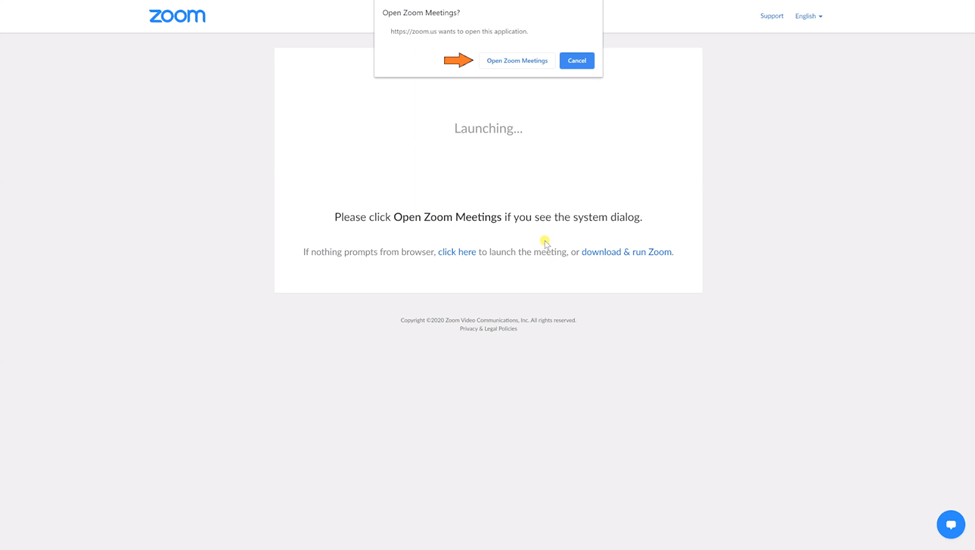
       1.  When you click the button to join the videoconference (lesson) you can select Open Zoom Meetings at the top of the page, if the Zoom app is already installed on your computer.
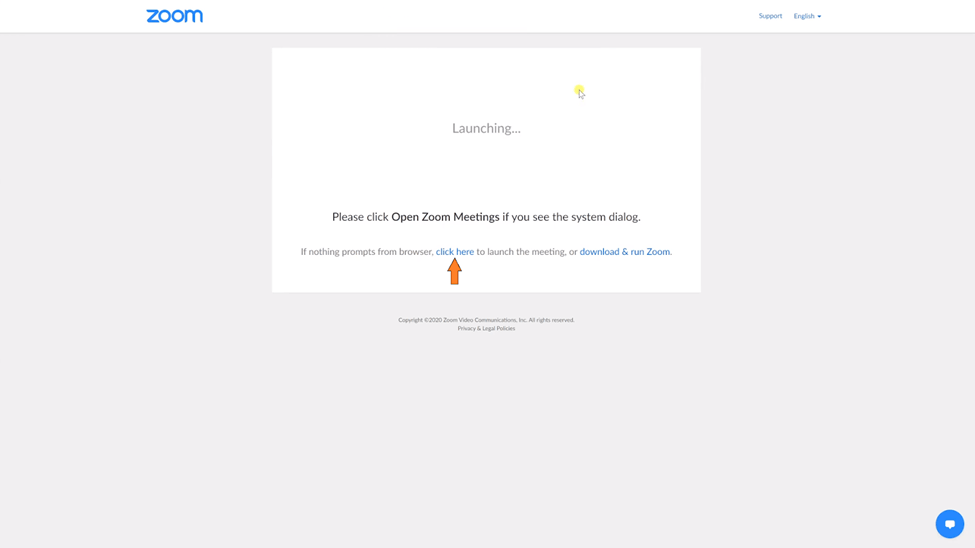
       2. If the Zoom app is not installed on your device, you can join the videoconference (lesson) right from your browser, selecting the option click here.
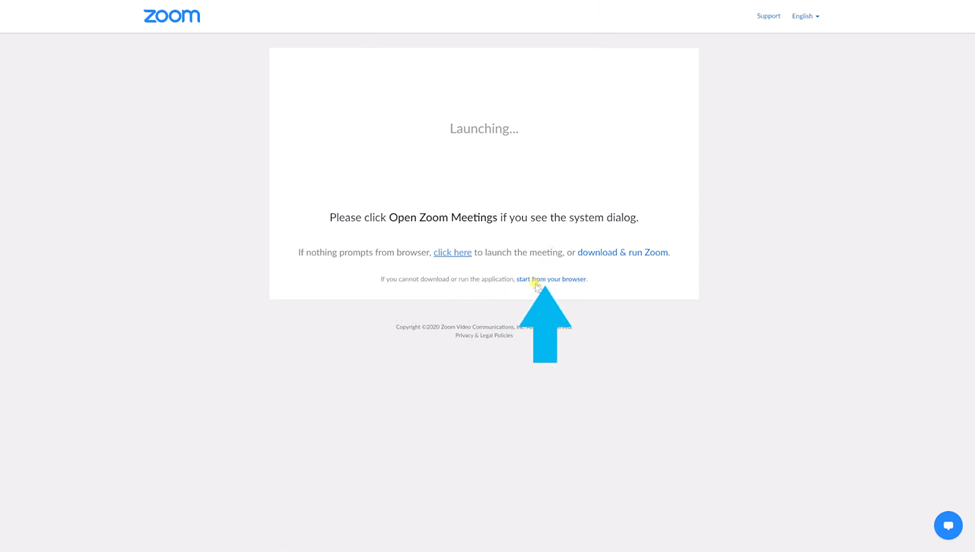
3. Click on start from your browser.
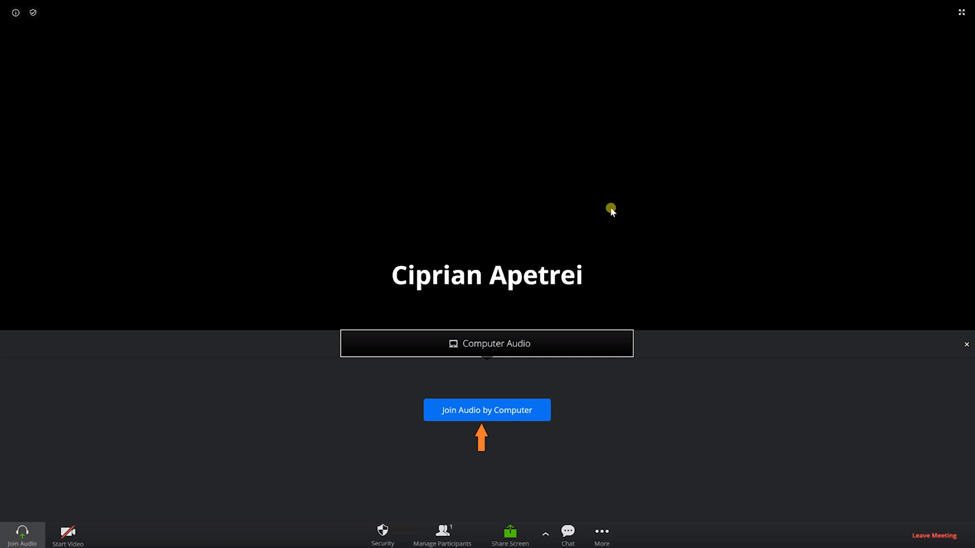
       4. To start streaming, click on the blue button Join Audio by Computer.
5. If you want to grant access to your camera, click on Start video in the bottom-left corner.
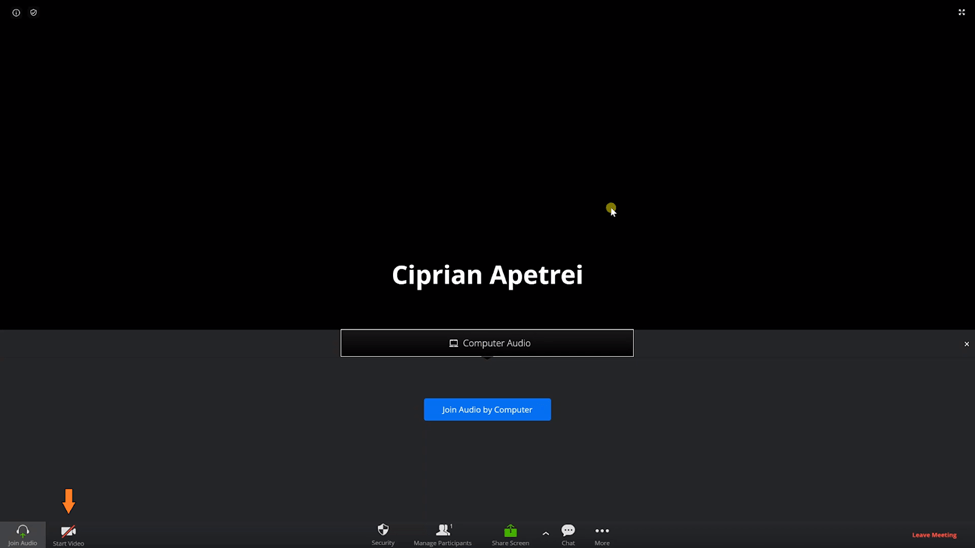
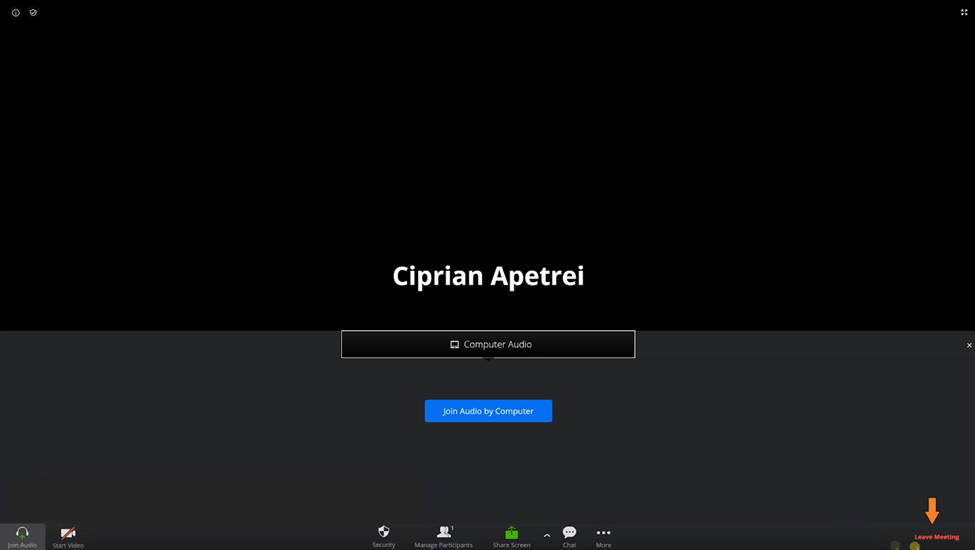
6. To end the lesson streamed on Zoom, click on Leave Meeting in the bottom right corner.
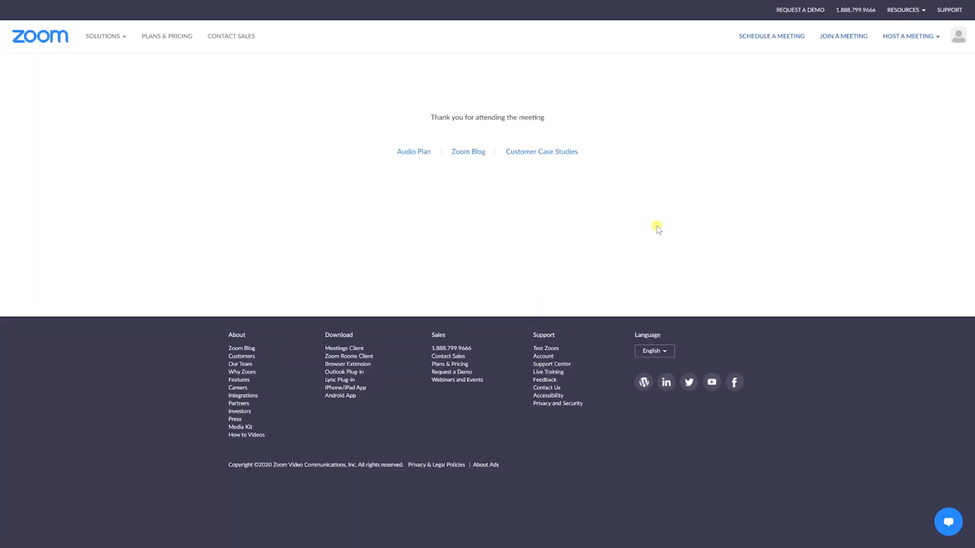
       7. Once you have ended the videoconference (lesson) you will see the message Thank you for attending the meeting.


Tags:Teachers & EducatorsTeacher

Was this useful?

Yes  No
Similar articles
  • How do I promote students to the next school year?
  • How do I restore a deleted student?
  • How do I add an educator?
  • How do I import the teacher table?
  • How do I import the table containing student and parent information?
  • How do I manually import a new student?

Didn't find your answer? Contact Us

Interactive lesson
  • Zoom configurations for videoconferencing on Adservio
  • How do I create a Zoom account for Adservio?
  • How do I create an interactive lesson in Adservio using Zoom?
  • How do I create an interactive lesson using the Webex videoconferencing service?
  • How do I link my Zoom account to Adservio?

  How do I search an educator?

  • © 2021 Adservio . All rights reserved.

Accessibility Adjustments

Powered by OneTap

How long do you want to hide the toolbar?
Hide Toolbar Duration
Select your accessibility profile
Vision Impaired Mode
Enhances website's visuals
Seizure Safe Profile
Clear flashes & reduces color
ADHD Friendly Mode
Focused browsing, distraction-free
Blindness Mode
Reduces distractions, improves focus
Epilepsy Safe Mode
Dims colors and stops blinking
Content Modules
Font Size

Default

Line Height

Default

Color Modules
Orientation Modules
Popular searches:How do I create an Adservio account?, How do I create a strong password?, How do I recover my password?